Mobile Backup
Overview
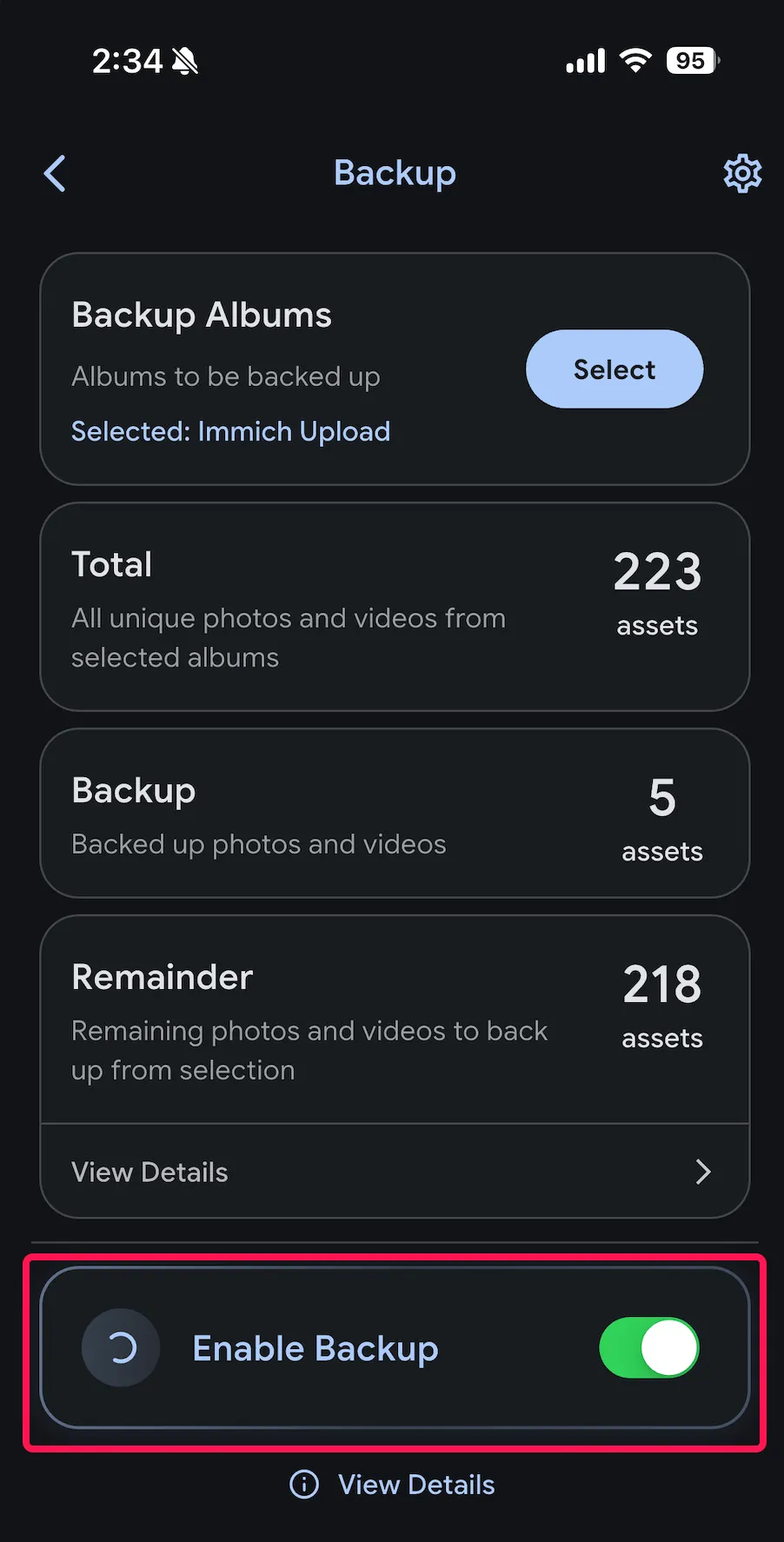
Immich supports uploading photos and videos from your mobile device to the server automatically.
When backup is enabled, Immich will upload new photos and videos from selected albums when you open or resume the app, as well as periodically in the background.
General Features
Backup albums selection
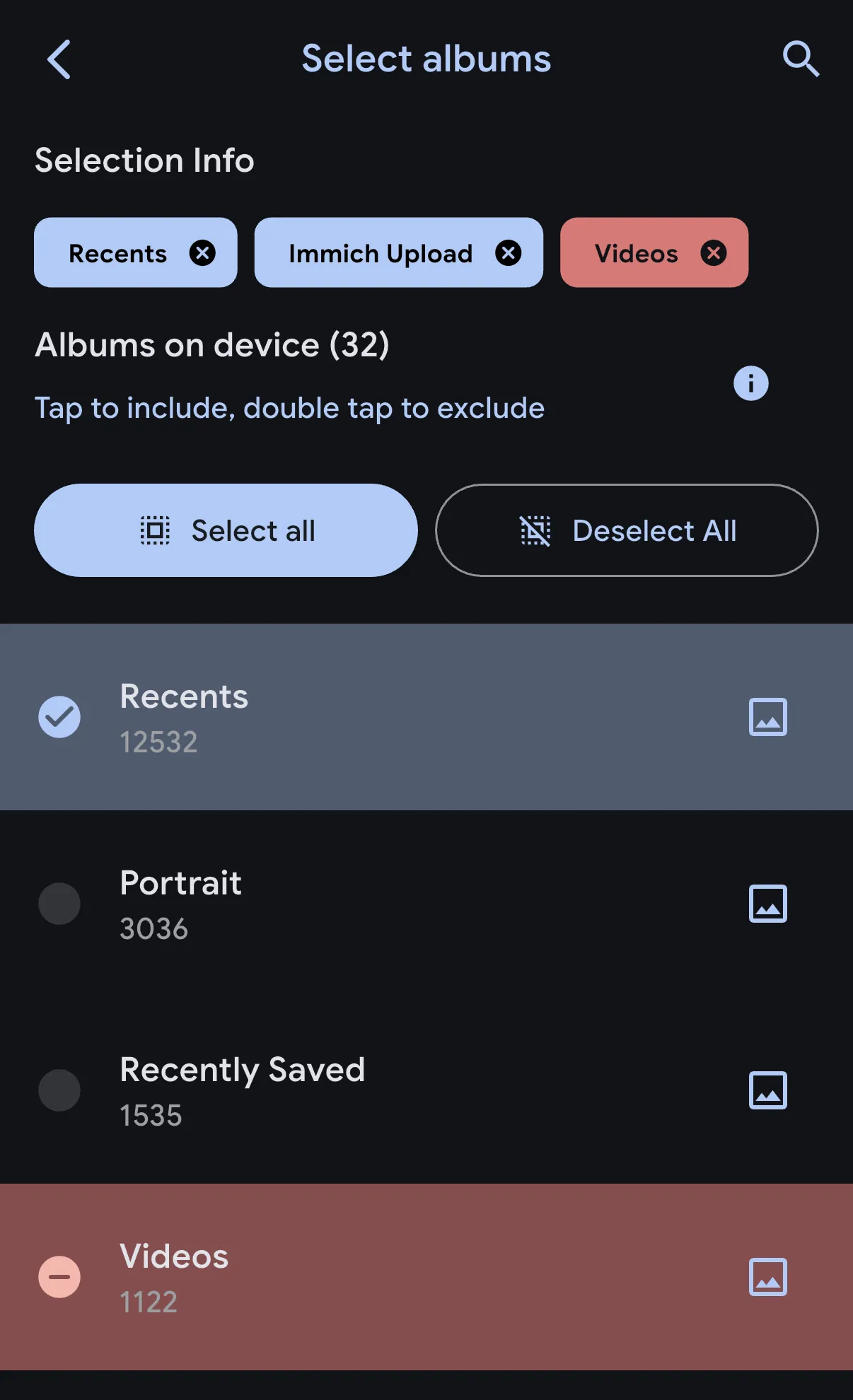
You can select which albums on your mobile device to back up to the server. You can also exclude specific albums (by double-tapping on them) from being backed up. This is useful for iOS users since assets can belong to multiple albums. For example, you may want to back up all assets except those in the "Videos" album.
Deduplication
When you first select albums for backup, Immich calculates a checksum for each file's content. This checksum identifies assets already on the server—whether uploaded via CLI, web interface, or another device. Files matching existing assets are skipped, preventing duplicate uploads and saving bandwidth.
Networking requirements
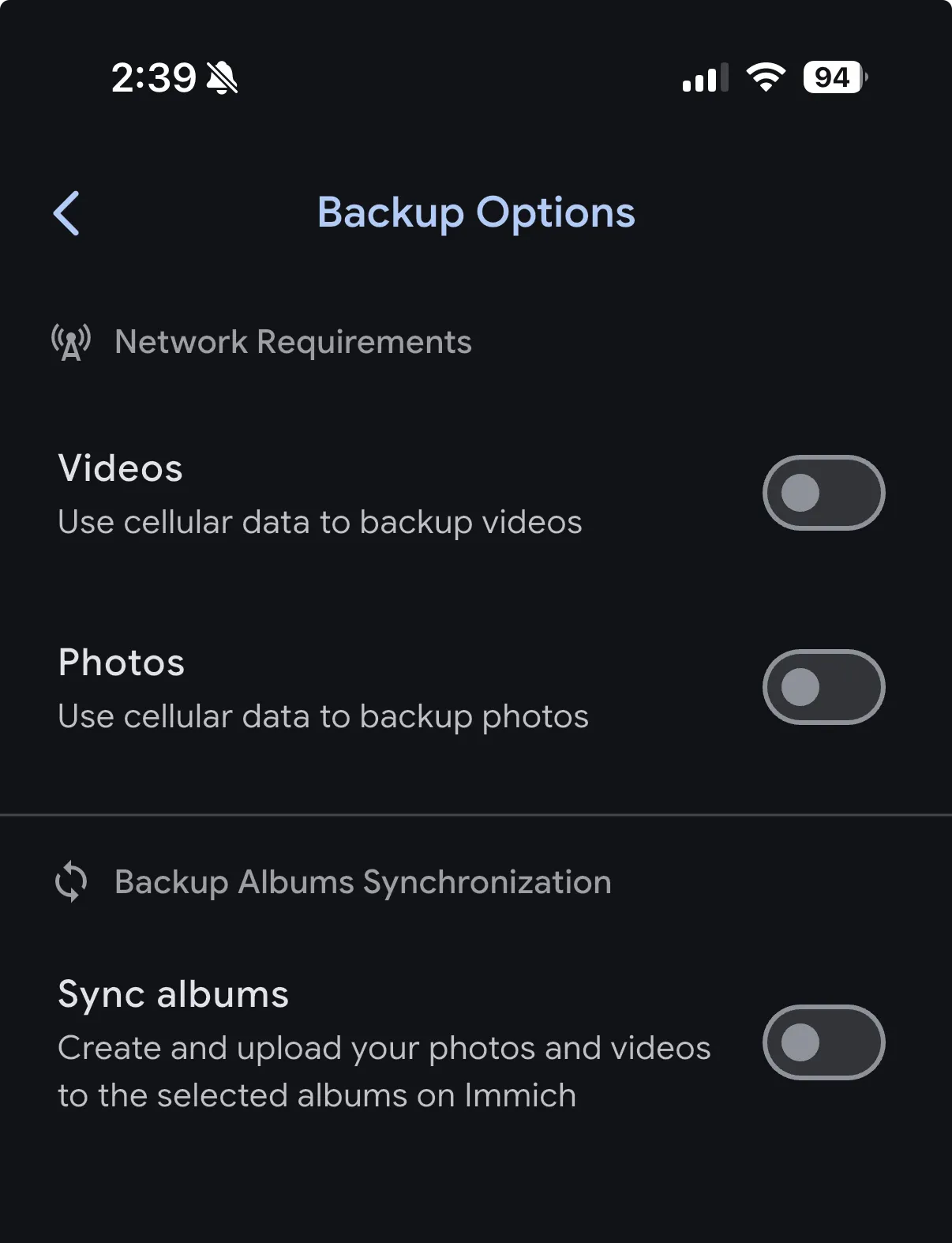
By default, Immich will only upload photos and videos when connected to Wi-Fi. You can change this behavior in the backup settings page.
Backup album synchronization
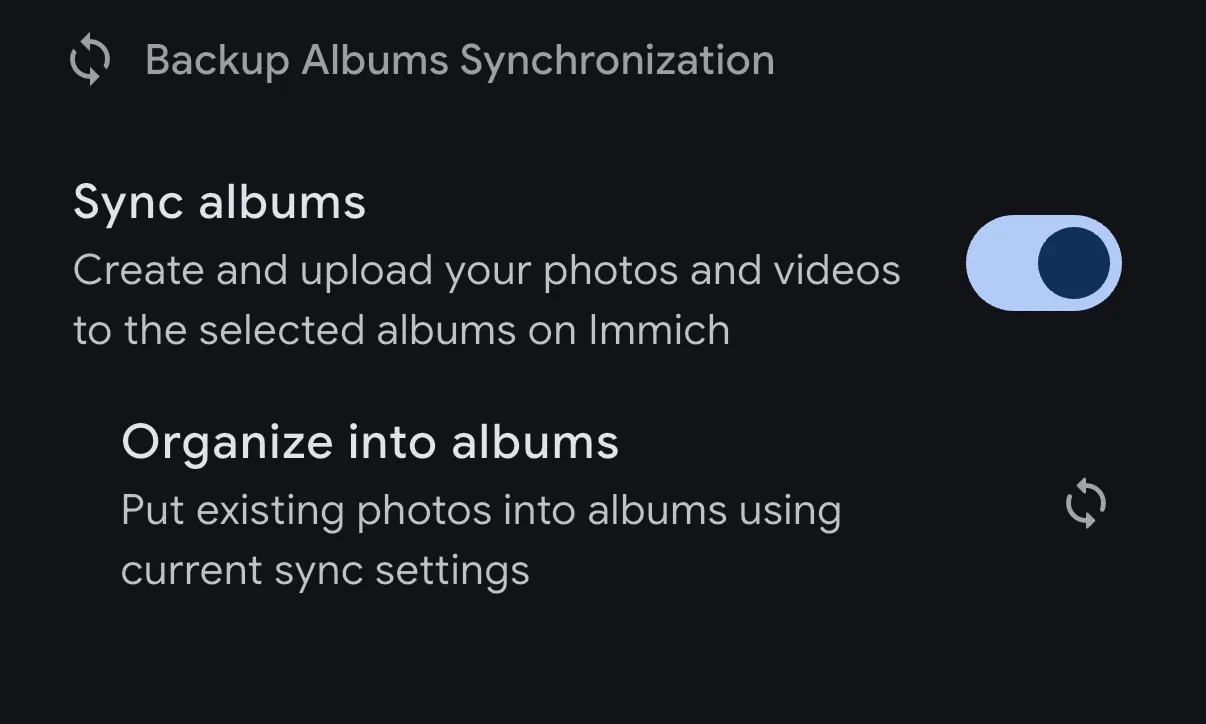
When enabled, Immich automatically creates albums on the server that mirror the albums on your mobile device. Photos and videos are organized into these server-side albums to match your device's album structure, making it easy to find and browse your content the same way you do on your phone.
This is a one-way sync from your device to the server. You can enable this feature at any time and use the Reorganize into album button to backfill existing uploads into their corresponding albums.
Platform Specific Features
Android
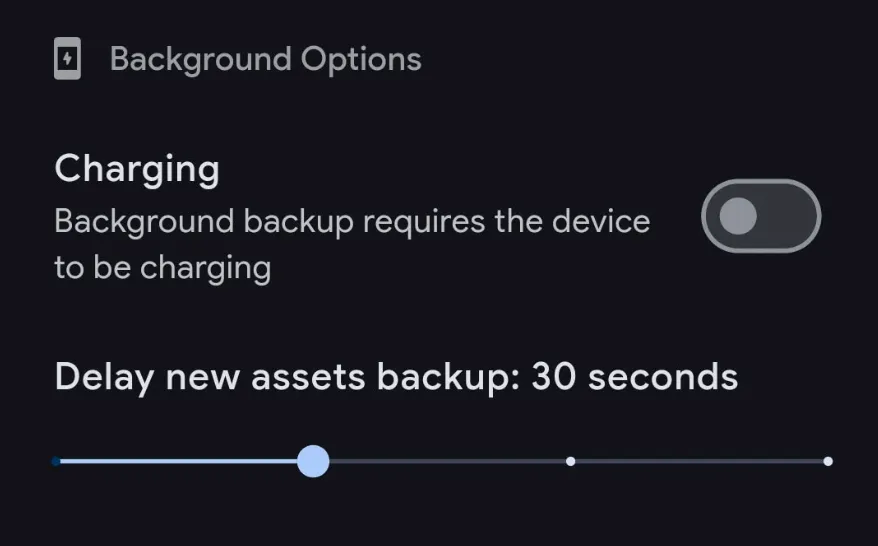
- It is a well-known problem that some Android models are very strict with battery optimization settings, which can cause a problem with the background worker. Please visit Don't kill my app for a guide on disabling this setting on your phone.
- You can allow the background task to run only when the device is charging.
- You can set the minimum delay from the time a photo is taken to when the background upload task will run.
iOS
- You must enable Background App Refresh for the app to work in the background. You can enable it in the Settings app under General > Background App Refresh.
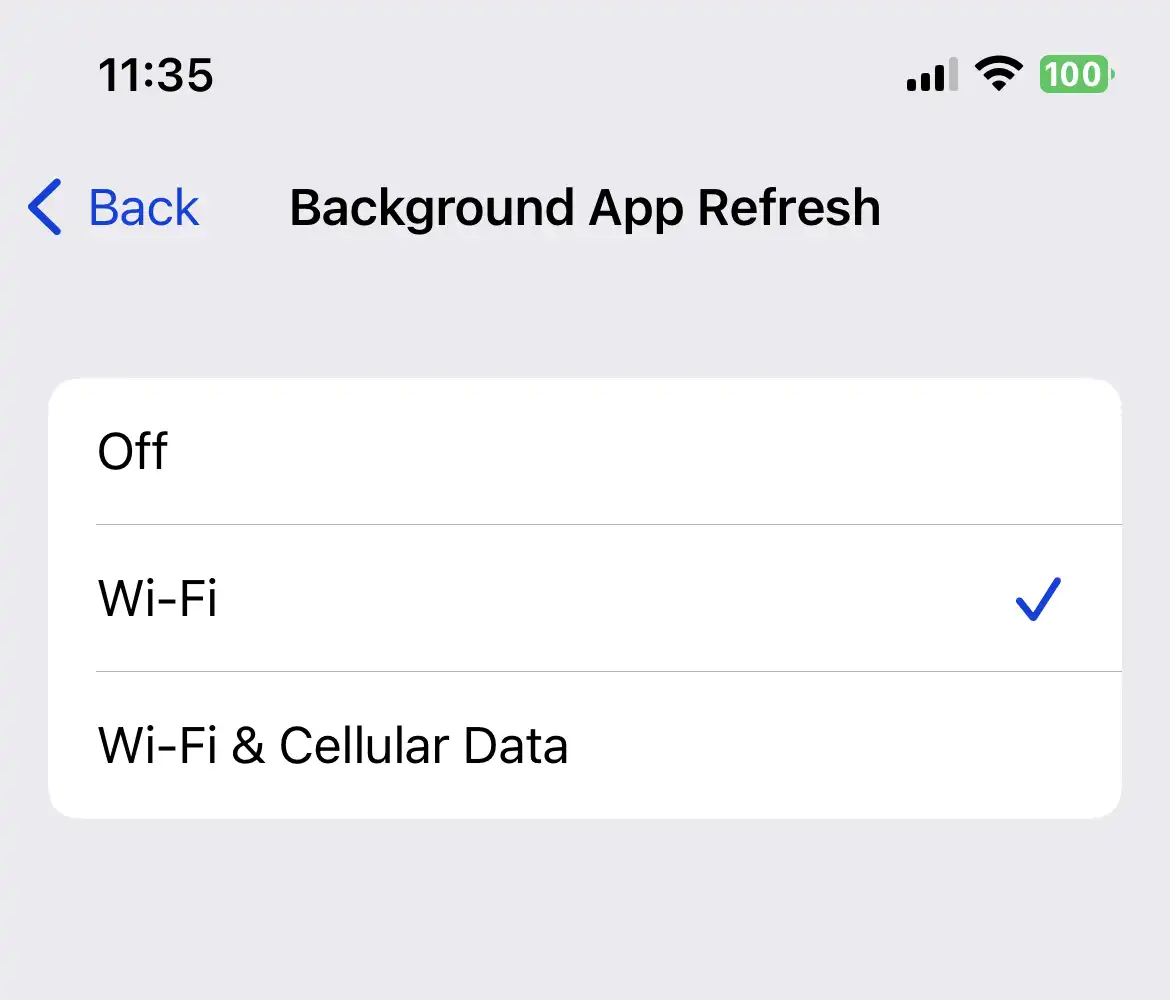
- iOS automatically manages background tasks; the app cannot control when the background upload task will run. The more frequently you open the app, the more often background tasks will run.
iCloud Backup
Local albums containing assets from iCloud and marked for backup in Immich will be pulled from iCloud and temporarily stored in the app's cache folder. Once the hashing and uploading process is completed, the temporary files will be emptied.
This process may consume additional data and storage space on your device, especially if you have a large number of iCloud photos and videos. Please ensure you have sufficient storage space and monitor your data usage if you are not connected to Wi-Fi.